Reports
Reports has two tabs. Opposition reports holds the letters you make from Journal watch. Client reports holds a monthly status report for each of your clients.
Opposition reports
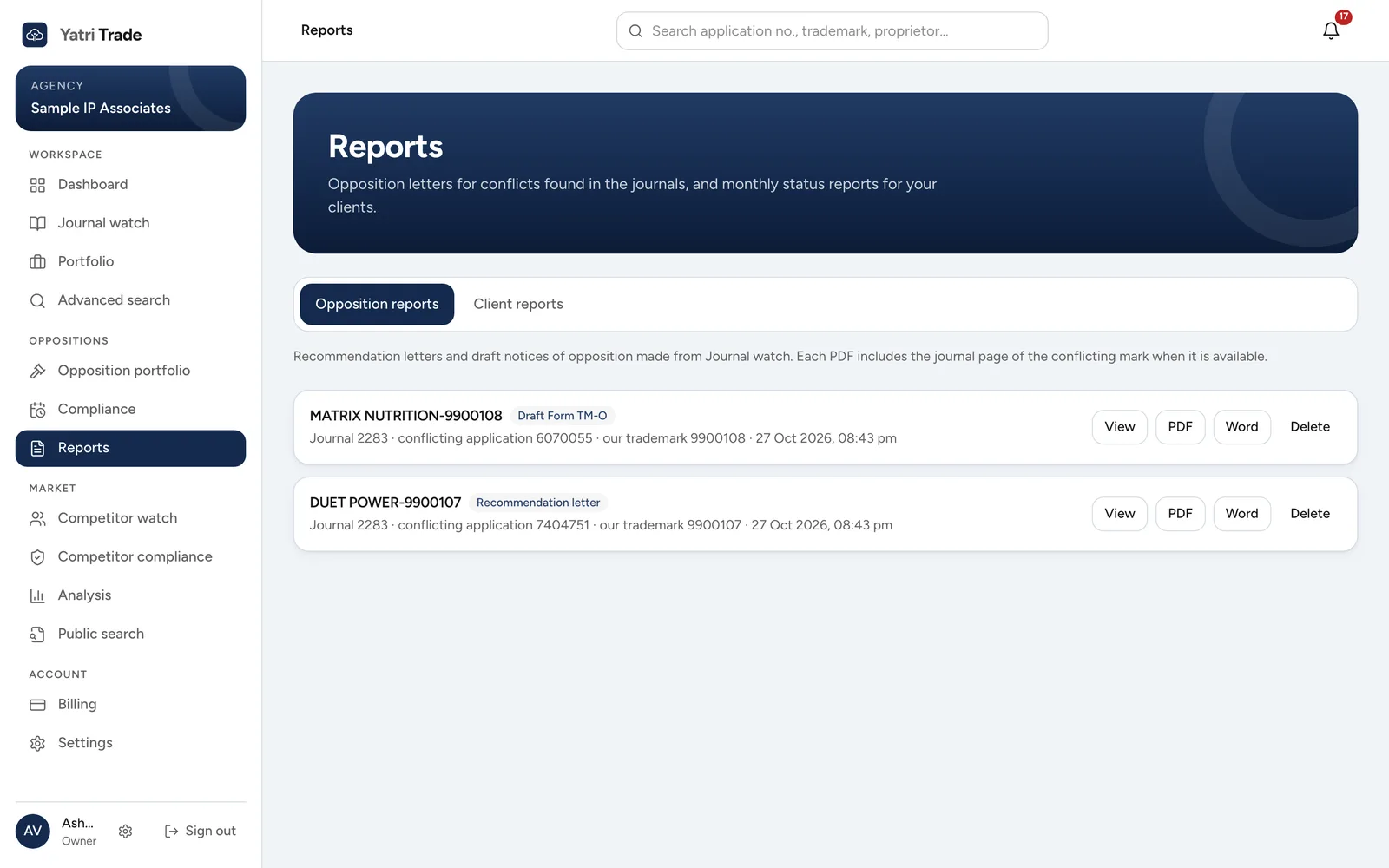
Two generated opposition reports: a recommendation letter and a Form TM-O draft. Each one can be viewed, or downloaded as PDF or Word.
You can turn any conflict in a search report into a document.
| Report type | Use it to |
|---|---|
| Recommendation letter | Advise your client to oppose. It compares both marks side by side and gives the last date to oppose |
| Draft Form TM-O | Prepare a notice of opposition. It sets out standard grounds under Sections 9, 11 and 18 of the Trade Marks Act for your attorney to review and complete |
Both are printed on your letterhead from Settings. The PDF includes the journal page that advertises the conflicting mark.
Generating an opposition report
- In the search report, tick your mark next to the conflicting mark. You can tick several of your marks; each gets its own report.
- Choose the report type.
- Tick Track as outbound opposition if you want Yatri Trade to follow the opposition deadlines for this case.
- Generate the report. Yatri Trade opens Reports when it is ready.
The list
The Opposition reports tab shows every report your firm has generated, newest first, with its type, the journal number and both application numbers. For each report you can:
- view the PDF in the browser,
- download the PDF,
- download the Word file to edit it,
- delete it. Deleting asks you to confirm.
To change the wording or layout of the letters, upload your own Word templates in Settings.
Client reports
A client is the owner named on your portfolio marks. Marks whose owner is written slightly differently, such as "M/s Sunrise Foods Pvt. Ltd." and "SUNRISE FOODS PVT LTD", count as one client.
Each client report covers one month and has four parts:
- the client's marks with their class, status and valid-until date,
- what changed on those marks during the month, such as a mark being registered or renewed,
- deadlines and hearings coming up in the next four months,
- marks advertised in that month's journals that look or sound like the client's marks, and why.
The report is printed on your letterhead from your Agency profile, as a PDF and as a Word file you can edit.
Every month
On the 1st of each month Yatri Trade makes last month's report for every client and emails your team that they are ready. You do not need to do anything.
Making a report yourself
- Open Reports and choose Client reports.
- Under Create a report, choose the client and the month.
- Choose Create report. It can take up to a minute, because the month's journals are checked for conflicts.
Making a report again for the same client and month replaces the earlier one.
Sending reports to clients
Under Clients, choose Add email next to a client and enter their email address. Tick Email every month if they should get their report by email on the 1st of each month. The email goes out in your firm's name, with your firm's email address for replies, and the PDF attached.
To send one report now, choose Email to client next to it, check the address and choose Send. The list then shows who the report was emailed to.
Each report can also be viewed, downloaded as PDF or Word, or deleted.
If email is not set up on your server yet, reports are still made every month but nothing is emailed.