A tour of the screens
This page shows every screen in Yatri Trade in the order a new firm usually meets them. The pictures come from a sample firm, Sample IP Associates, with ten marks and five opposition cases. The journal marks in them are real entries from recent Trade Marks Journals.
The menu on the left has four groups. Workspace holds the daily work, Oppositions holds your cases and their dates, Market is for research, and Account is for billing and settings. The search box at the top finds any mark by application number, name or proprietor from every screen.
Dashboard
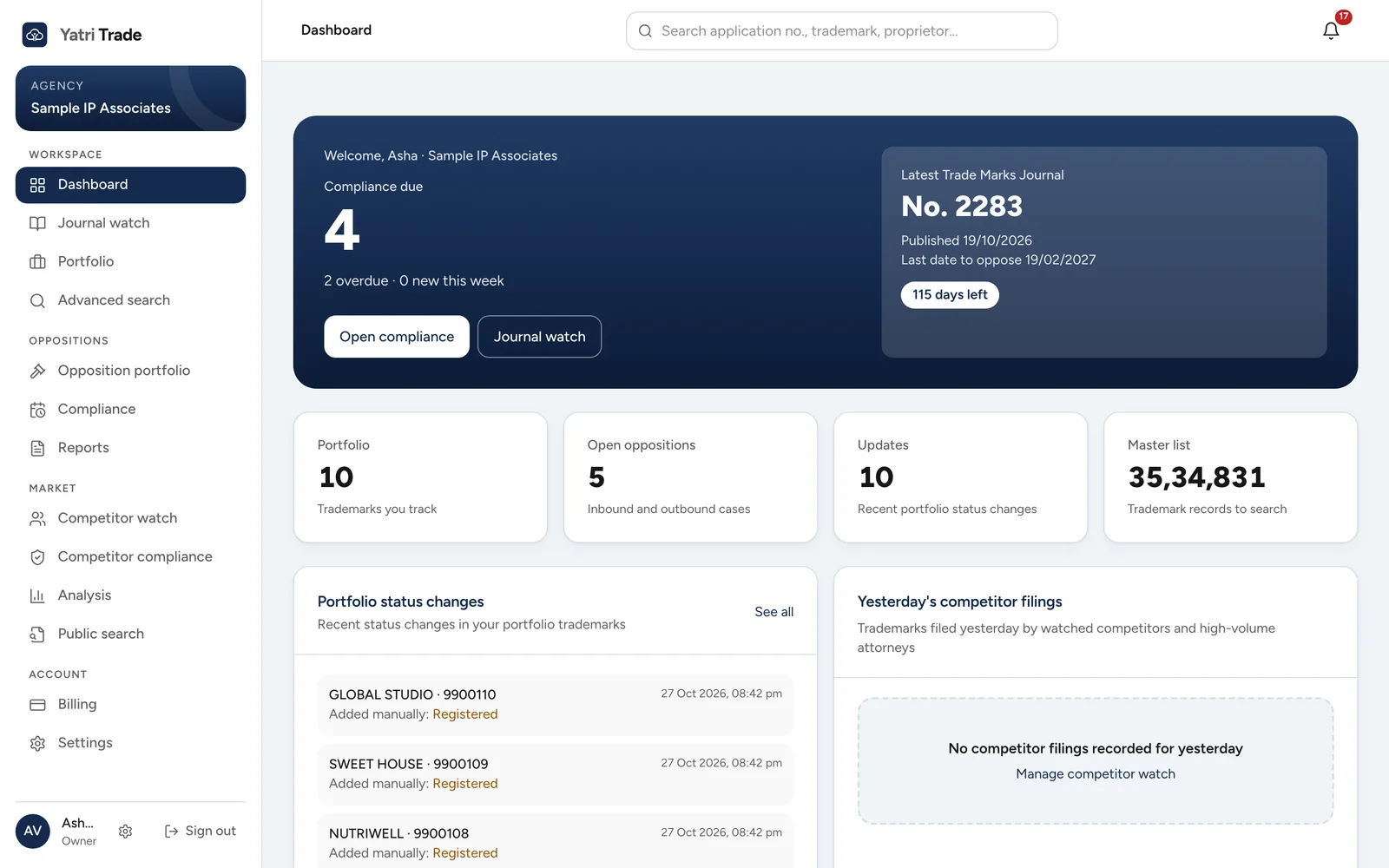
The dashboard is the first screen after you sign in. The number on the left is how many filings and hearings are due, with the overdue ones counted underneath. Open compliance takes you to the list. On the right is the latest journal and the days left to oppose its marks.
The tiles below count the marks in your portfolio, your open oppositions, recent status changes and the trademarks in the shared master list. Further down are the latest changes to your marks and yesterday's filings by competitors you watch. More in Dashboard and updates.
Journal watch
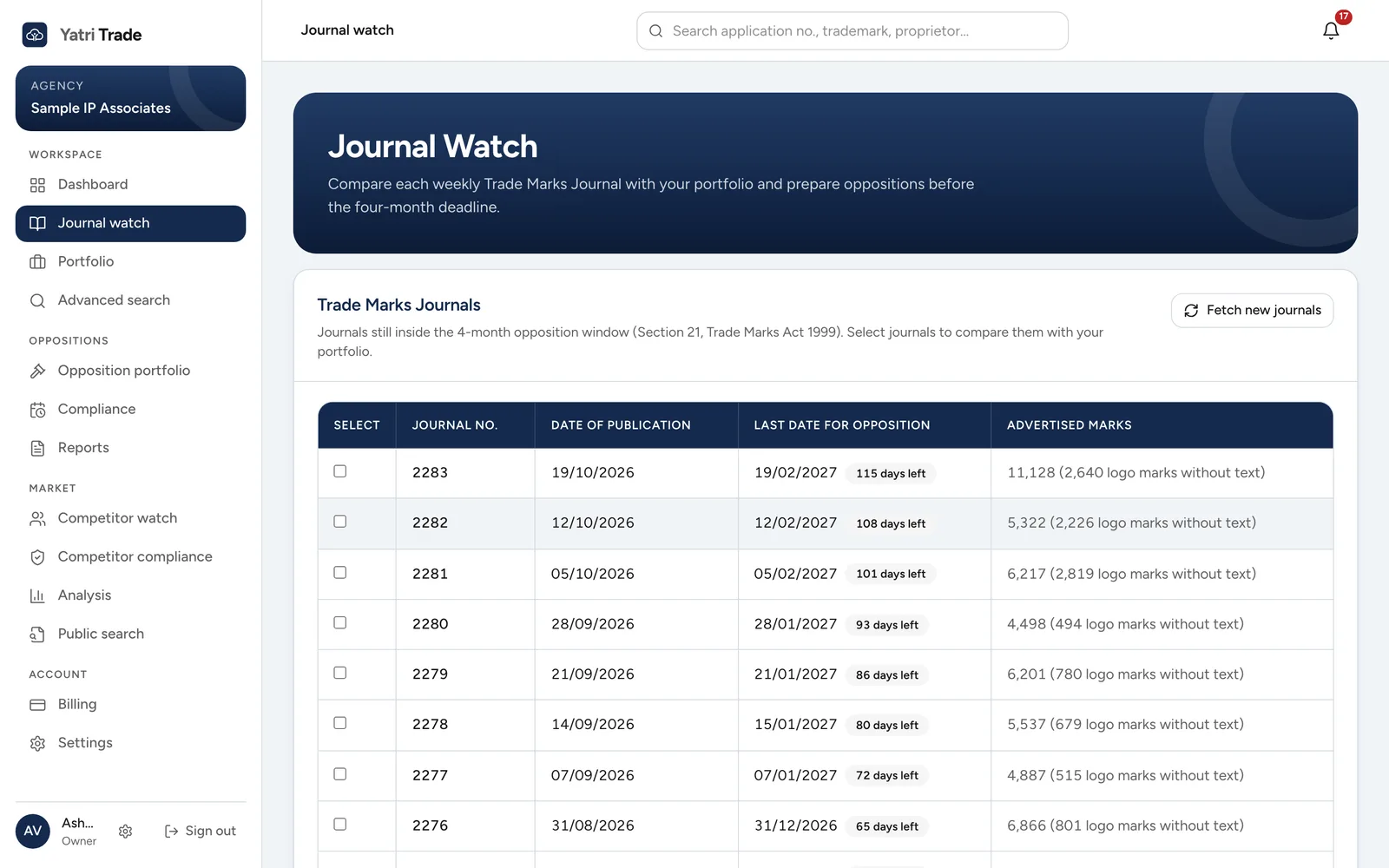
Every journal that can still be opposed is listed here, newest first. The label next to the last date turns red when 15 days or fewer are left. To check a journal:
- Tick one or more journals.
- Choose Generate Search Report under the list.
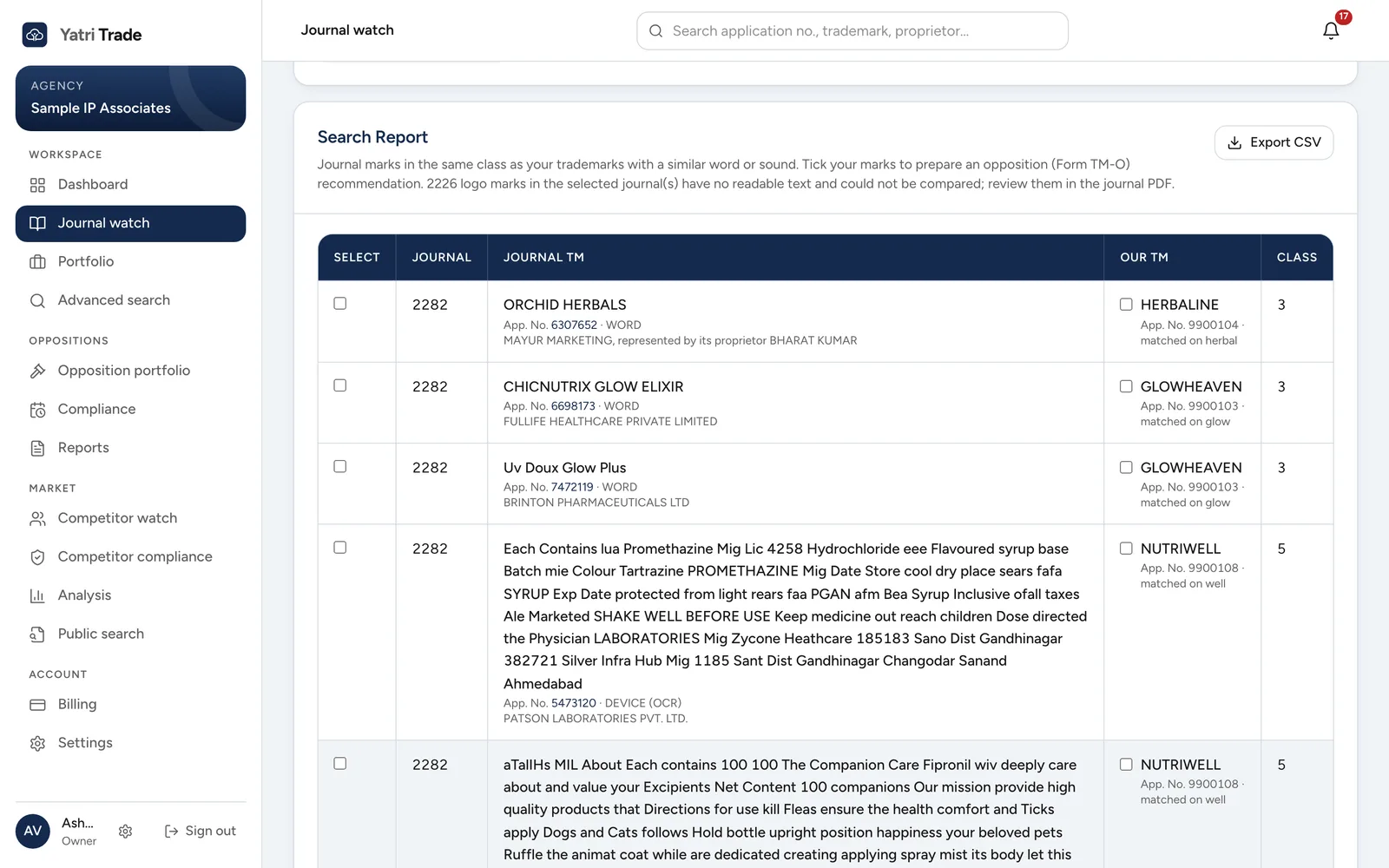
The report appears under the journals. On the left is the advertised mark with its application number and owner. On the right is your mark it conflicts with and the word it matched on, such as "matched on herbal". Tick your mark in a row to prepare a recommendation letter or a Form TM-O draft for it. Export CSV saves the whole report as a spreadsheet. More in Journal watch.
Portfolio
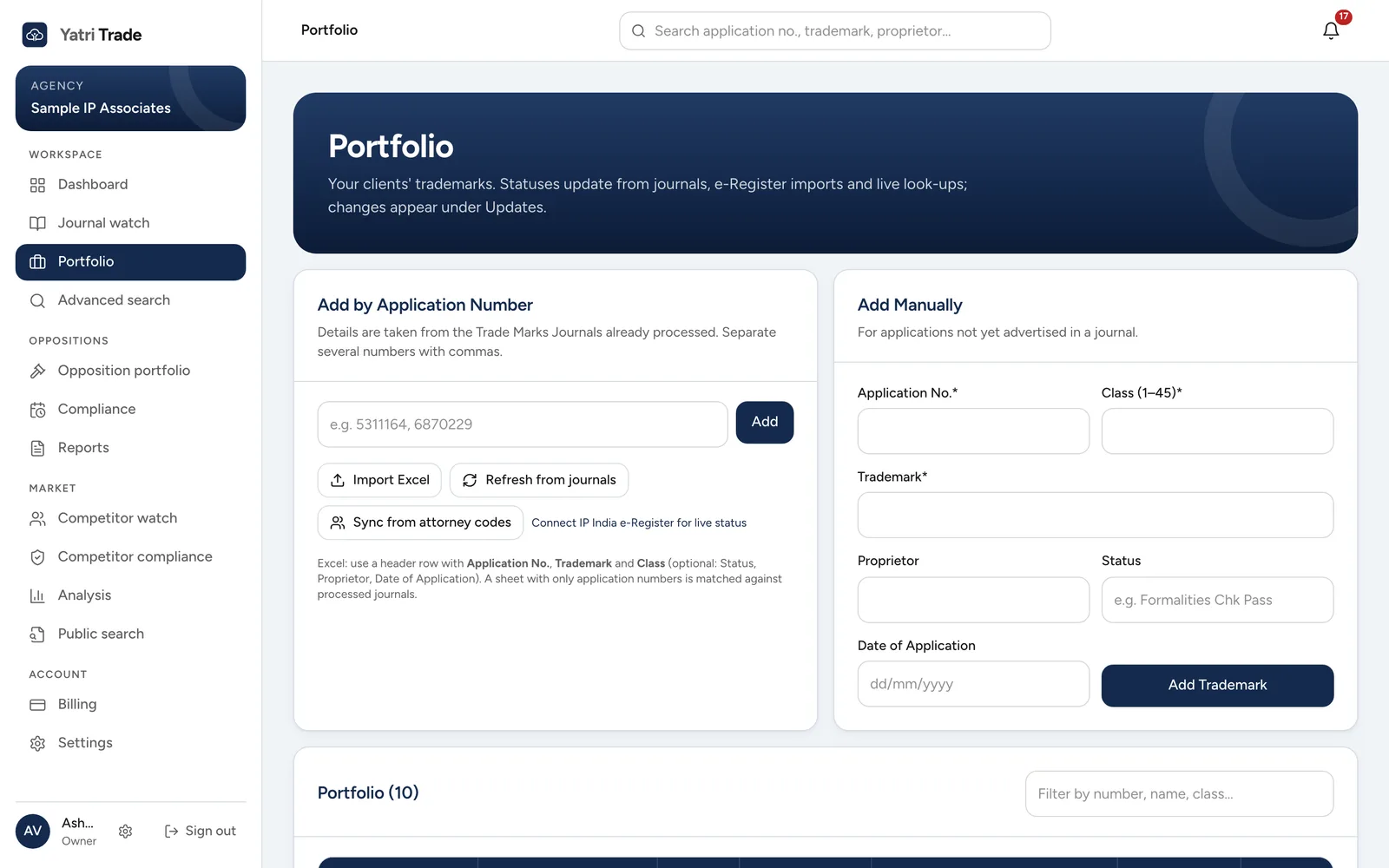
Your clients' marks live here. There are three ways to add them:
- type application numbers in Add by Application Number,
- choose Sync from attorney codes to bring in every application filed under your agent codes,
- or use Add Manually for a mark that has not been advertised yet.
Import Excel loads an existing client list. Your marks are listed under the two cards, with a filter box to find one quickly. More in Portfolio.
Advanced search
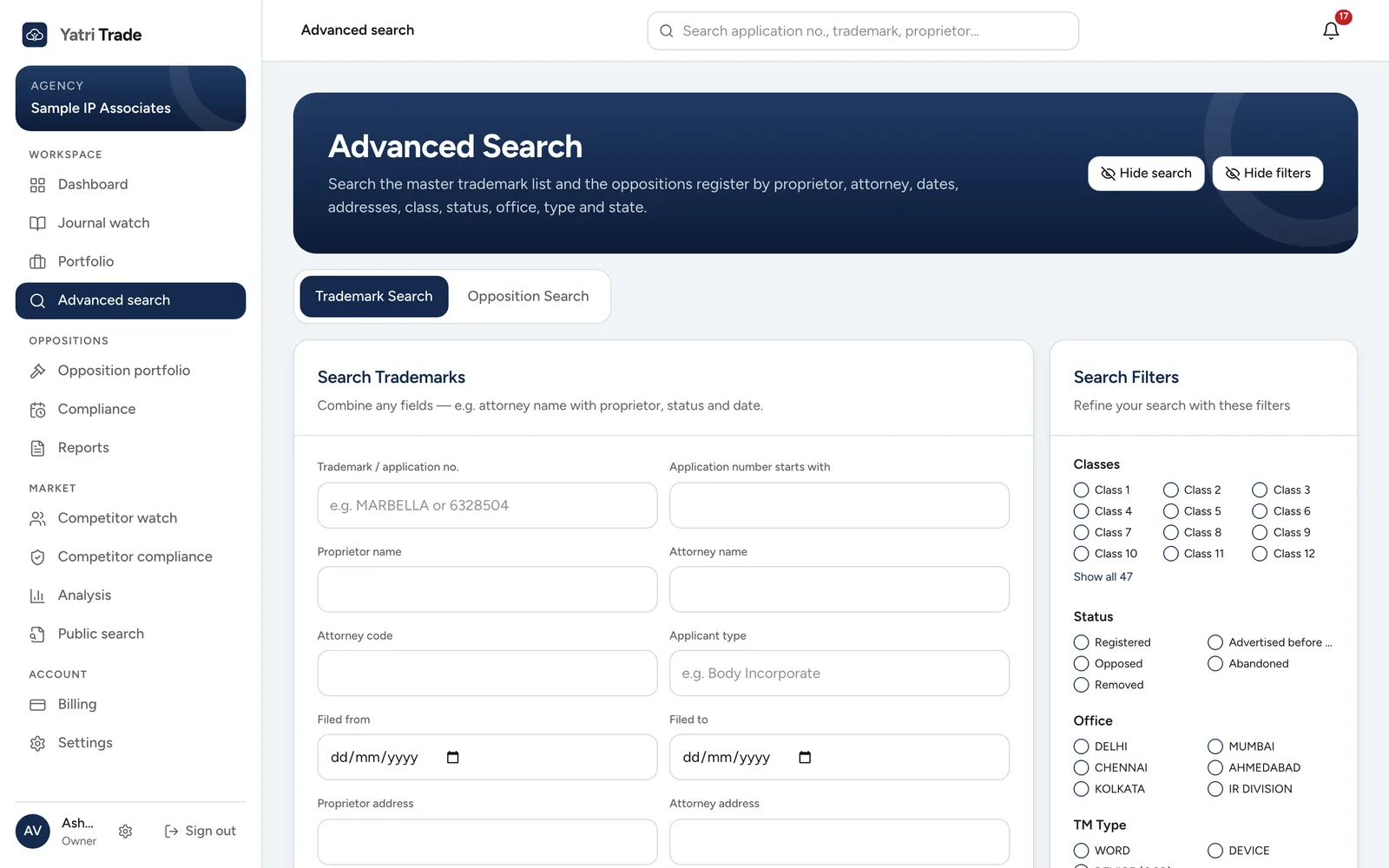
Advanced search looks through the whole master list, not only your portfolio. Fill in any of the fields, such as proprietor and class, and tick filters on the right for class, status, office and mark type. Opposition Search at the top searches the oppositions register instead. More in Advanced search.
Opposition portfolio
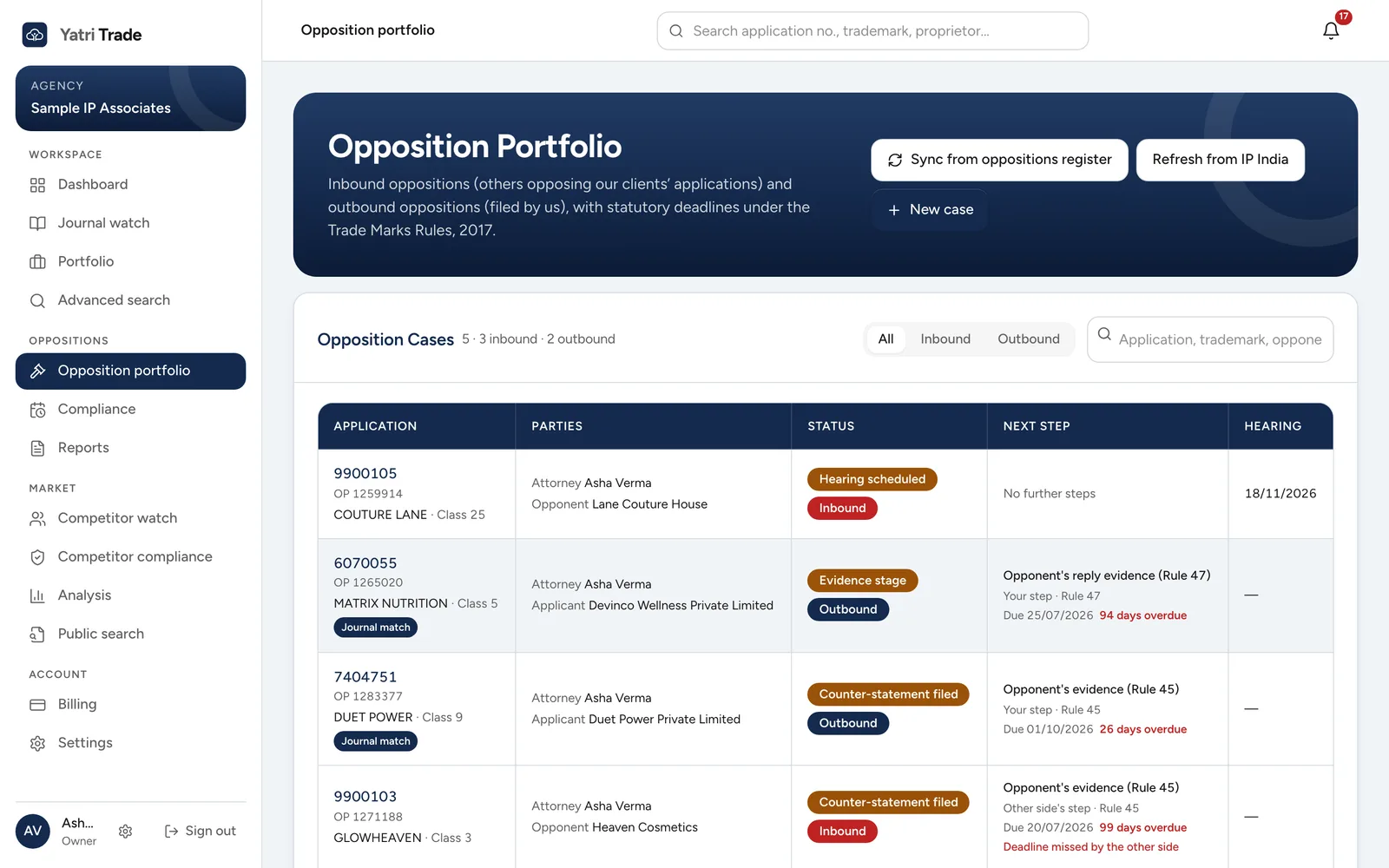
Every opposition your firm handles is listed here. Inbound means someone opposes your client's mark, and outbound means you oppose someone else's. The Next step column says what has to be filed next, whose step it is, the rule and the due date.
When the other side misses a deadline, a red line says so, as under GLOWHEAVEN in the picture. Sync from oppositions register adds cases that involve your marks or your attorneys, and New case lets you enter one yourself. More in Opposition portfolio.
Compliance
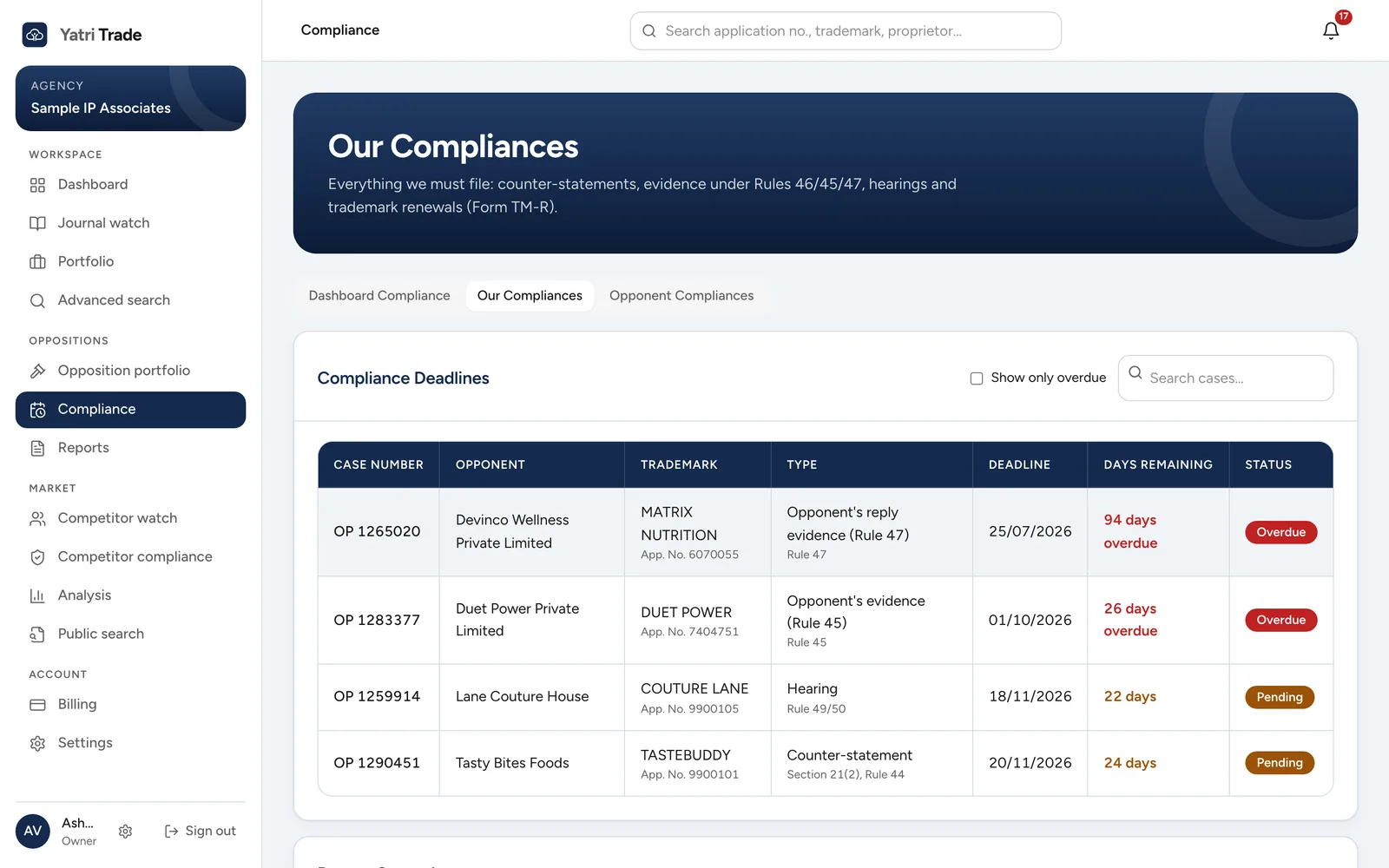
Compliance collects every date from your cases in one list. Our Compliances shows what your firm must file or attend, overdue items first, with renewals due within a year. Tick Show only overdue to see only what is late.
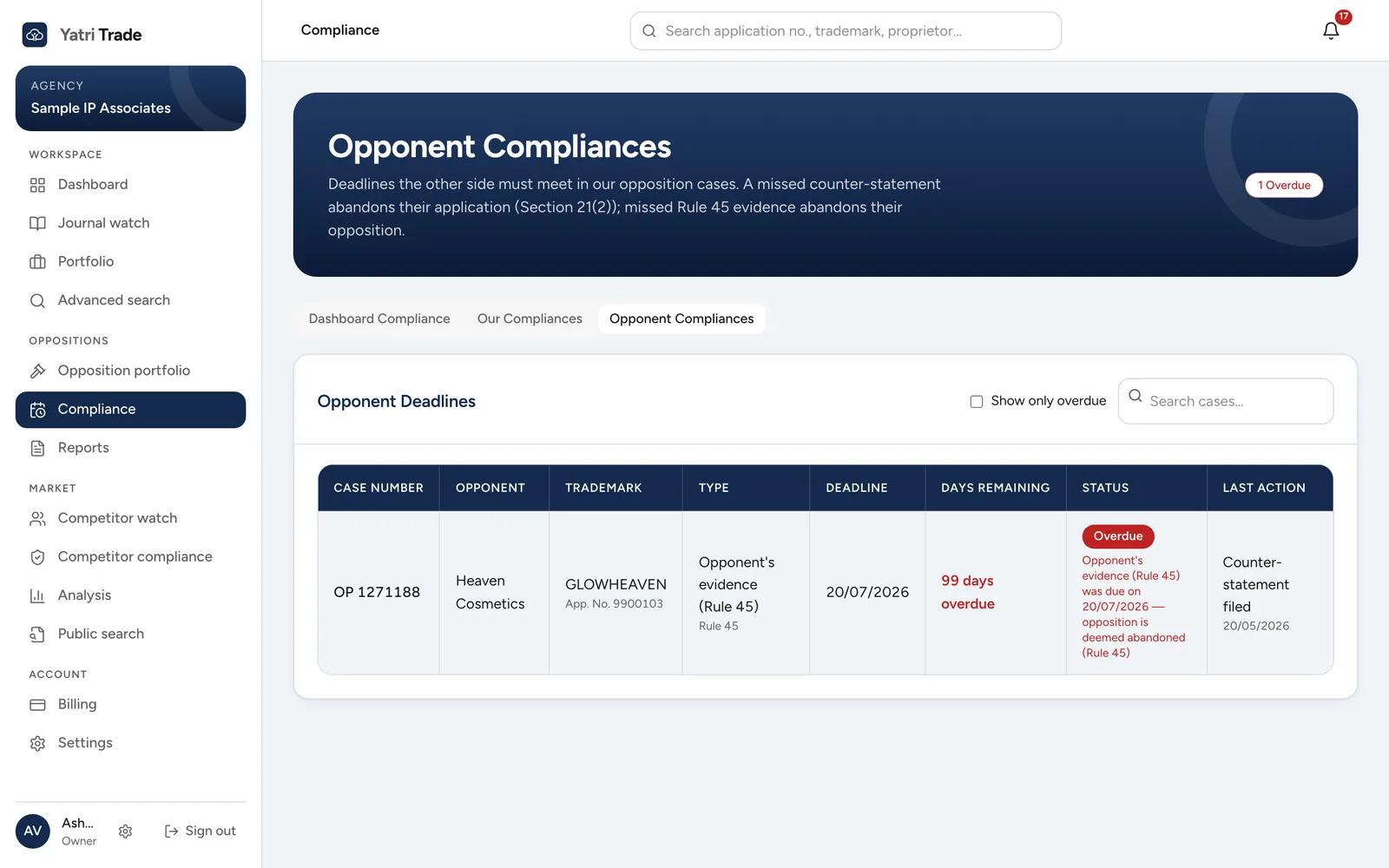
Opponent Compliances shows the same for the other side: what they must file next, what they filed recently and when they missed a deadline. More in Compliance and How deadlines are worked out.
Reports
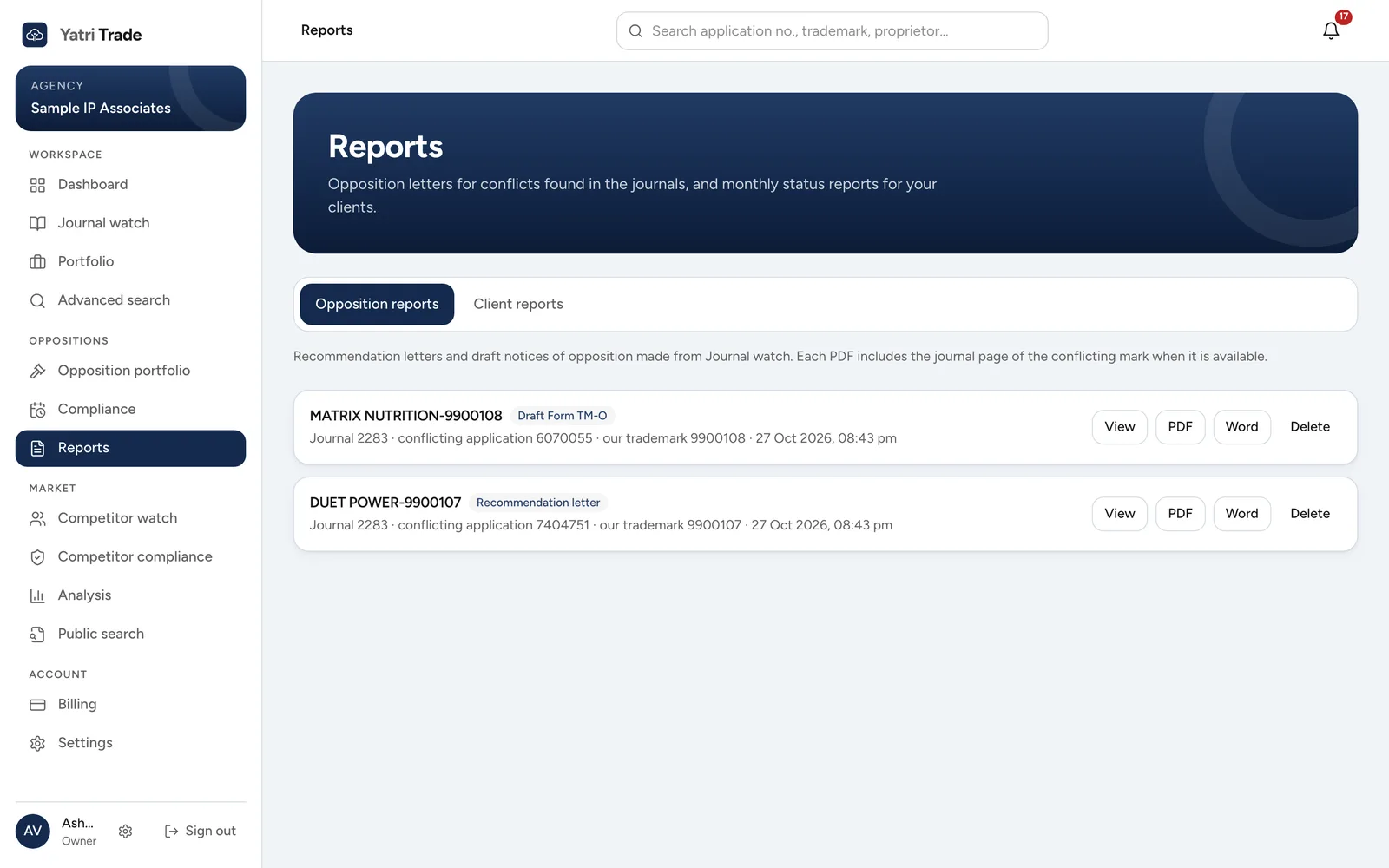
Every letter and Form TM-O draft you create from a search report is kept here. Each one can be opened with View or downloaded as PDF or Word. Client reports holds the monthly status reports for your clients. More in Reports.
Competitor watch and competitor compliance
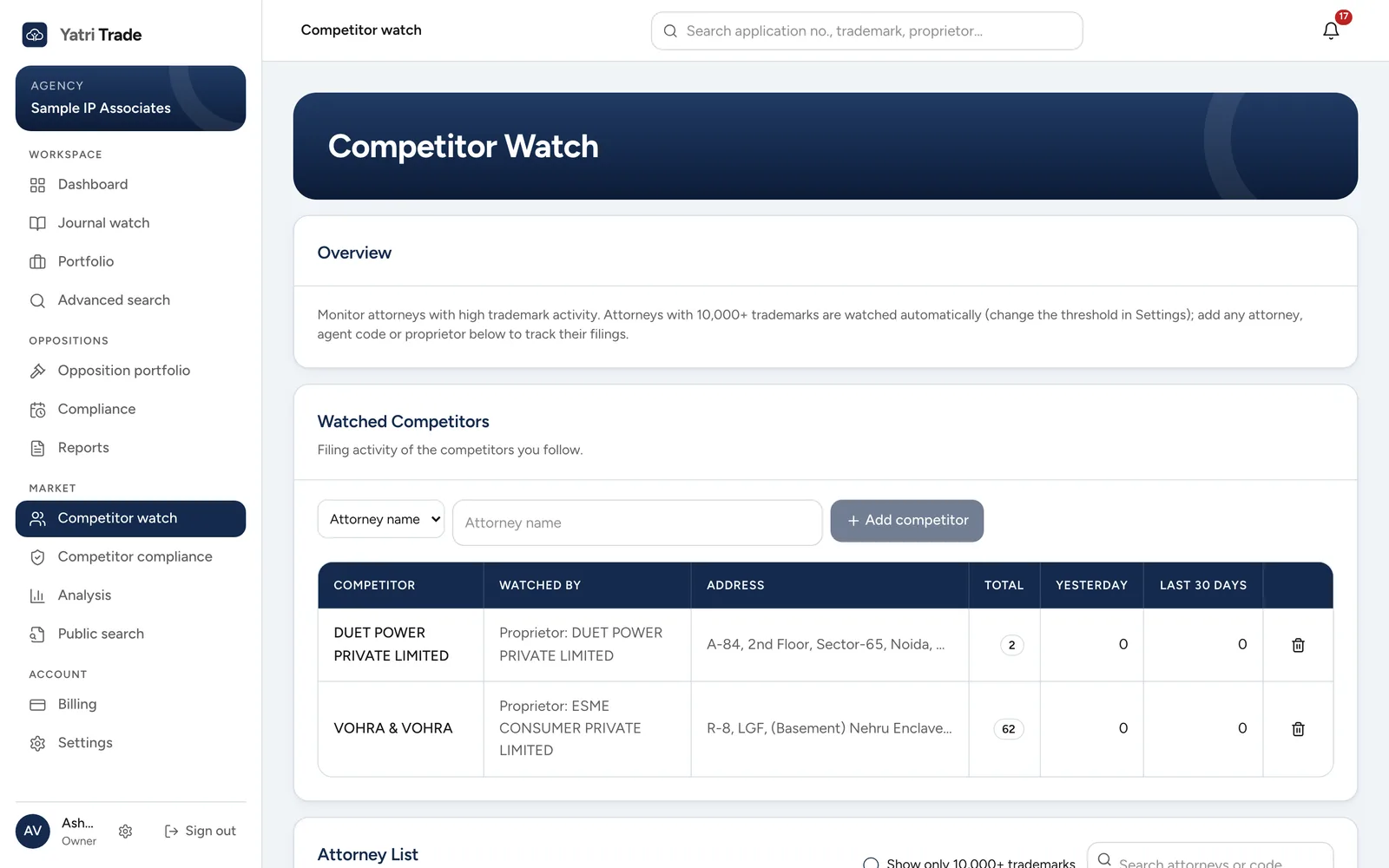
Competitor watch follows other attorneys, agent codes or proprietors. Add one in Watched Competitors and their new filings show up here and on the dashboard. The attorney list underneath ranks attorneys by the number of marks in the master list.
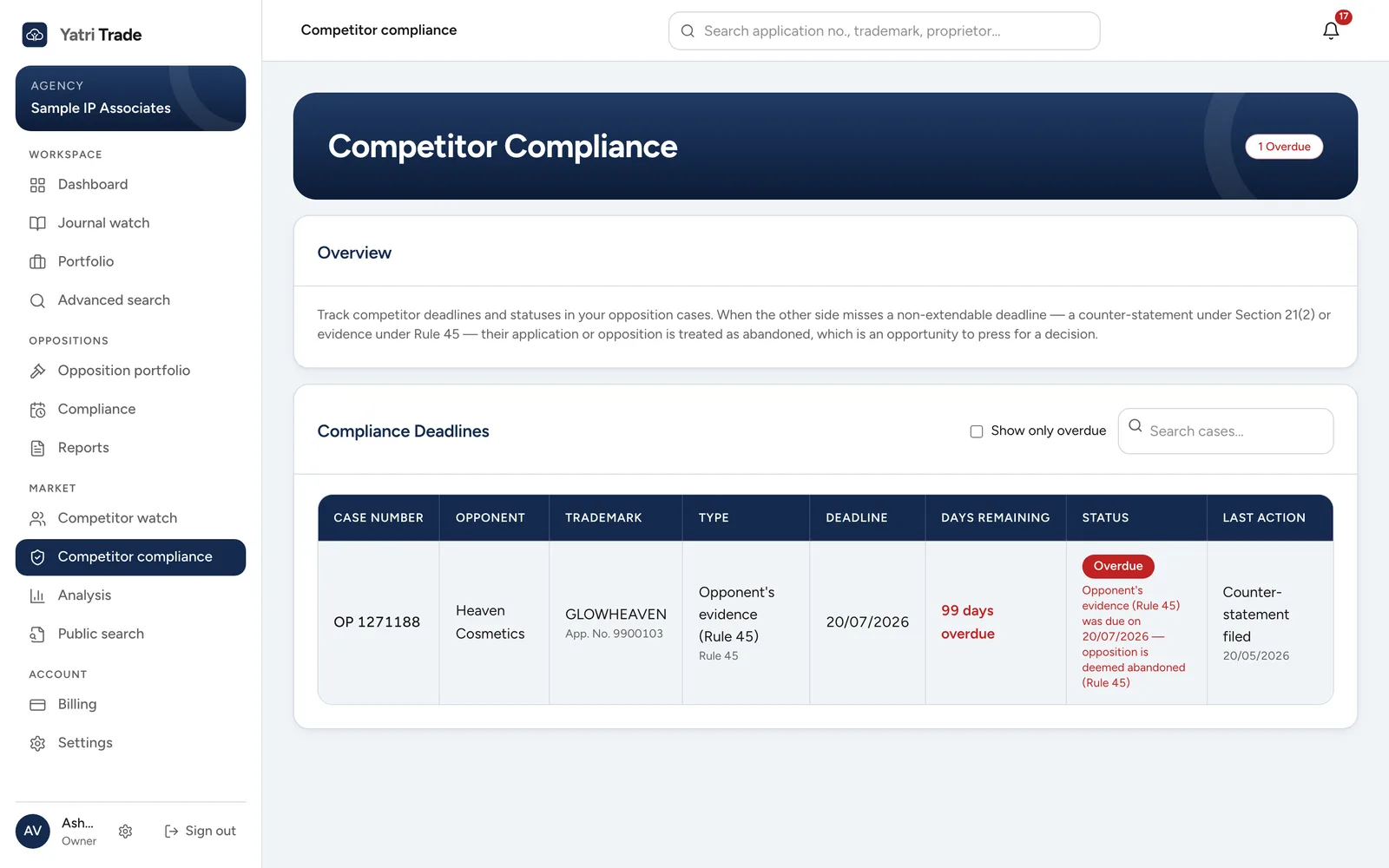
Competitor compliance lists the other side's deadlines across all your cases. The red status means a deadline has passed; the note under it explains the effect, here that the opposition is deemed abandoned under Rule 45. More in Competitor watch.
Analysis
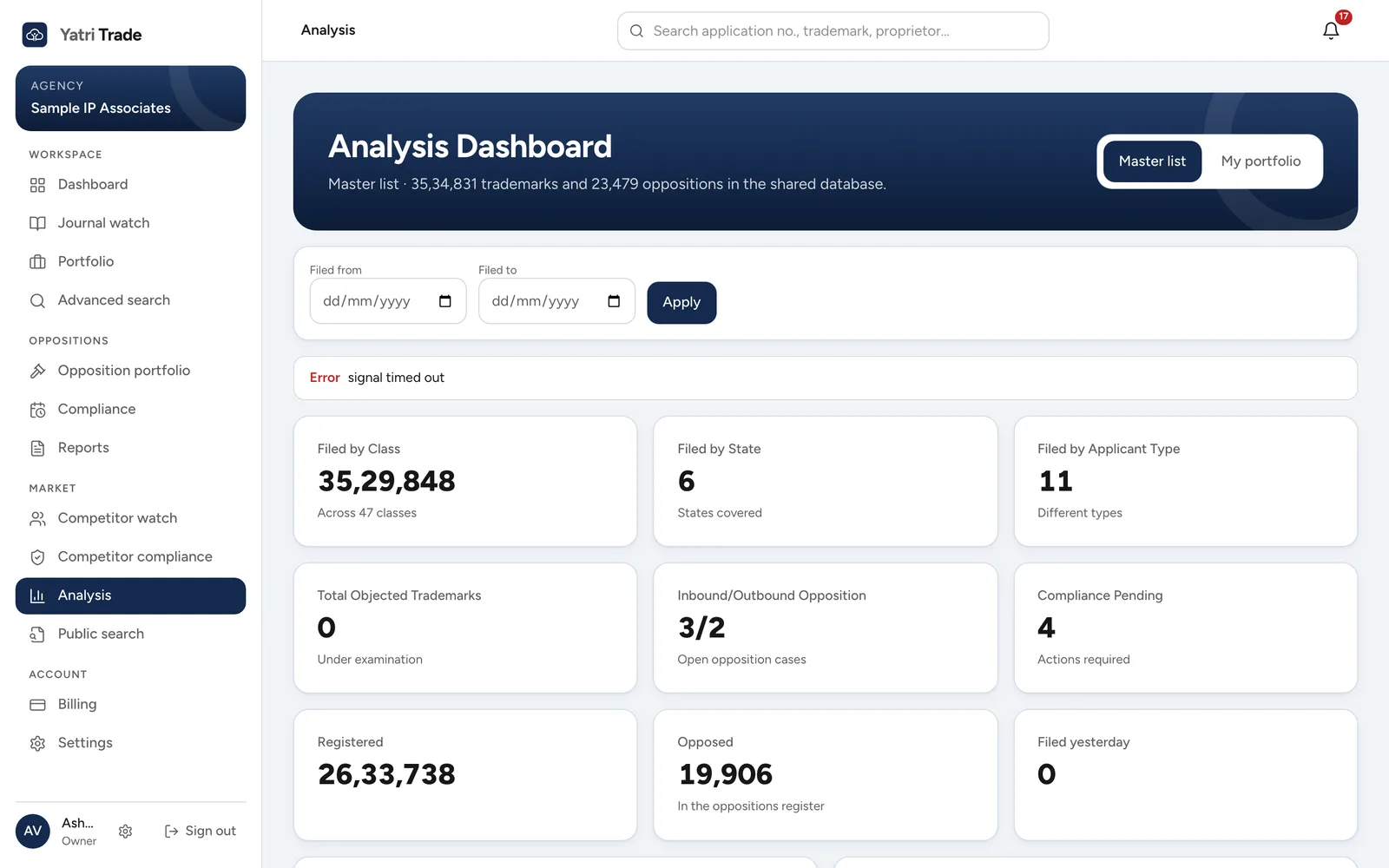
Analysis counts filings by class, state and applicant type, and shows objected, opposed and registered marks. Switch between Master list and My portfolio at the top right, and set Filed from and Filed to to look at a period. More in Analysis.
Public search
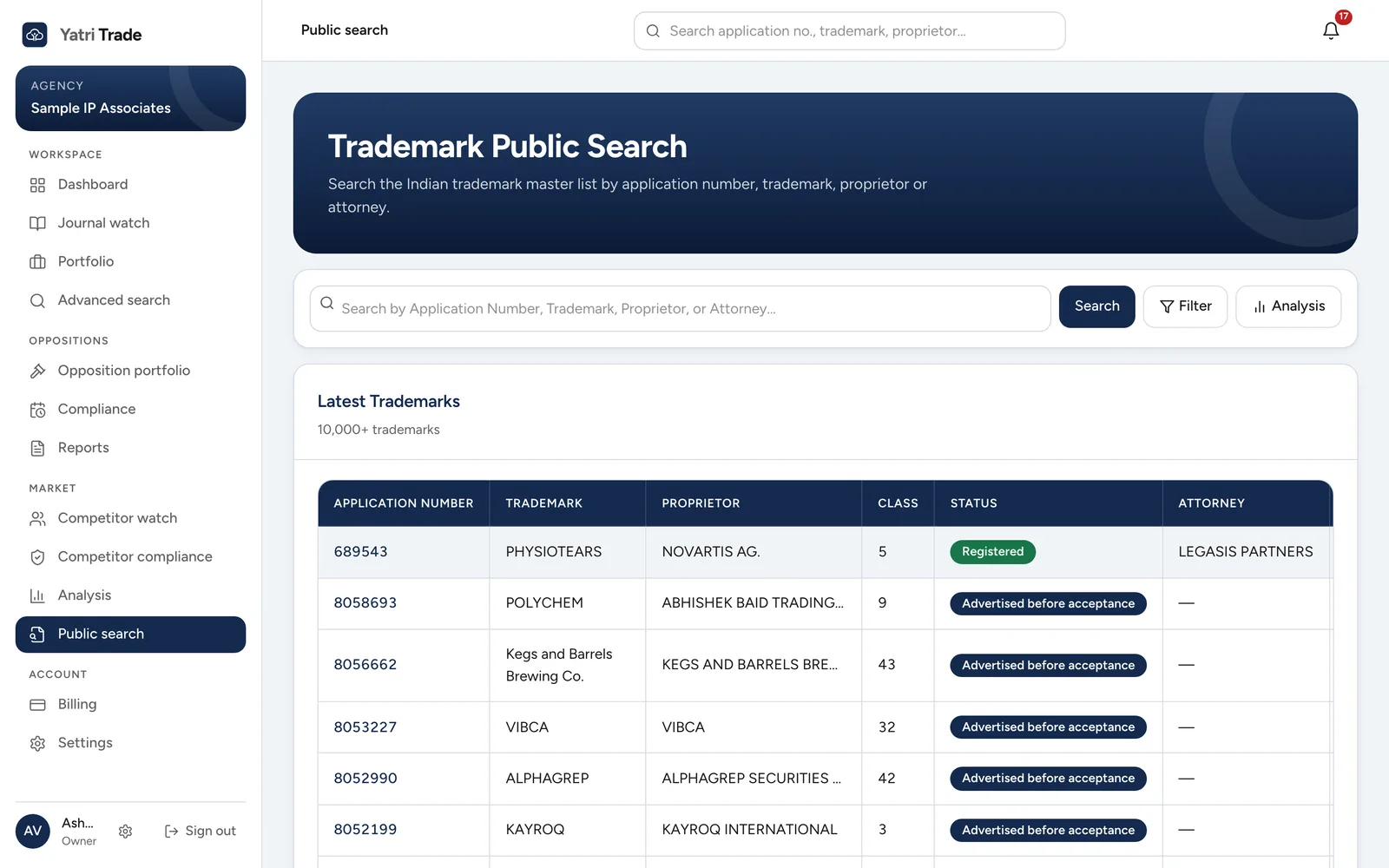
Public search is one box for a quick look-up by application number, trademark, proprietor or attorney. Before you search it lists the latest filings. Filter opens the same search in Advanced search. More in Public search.
Billing
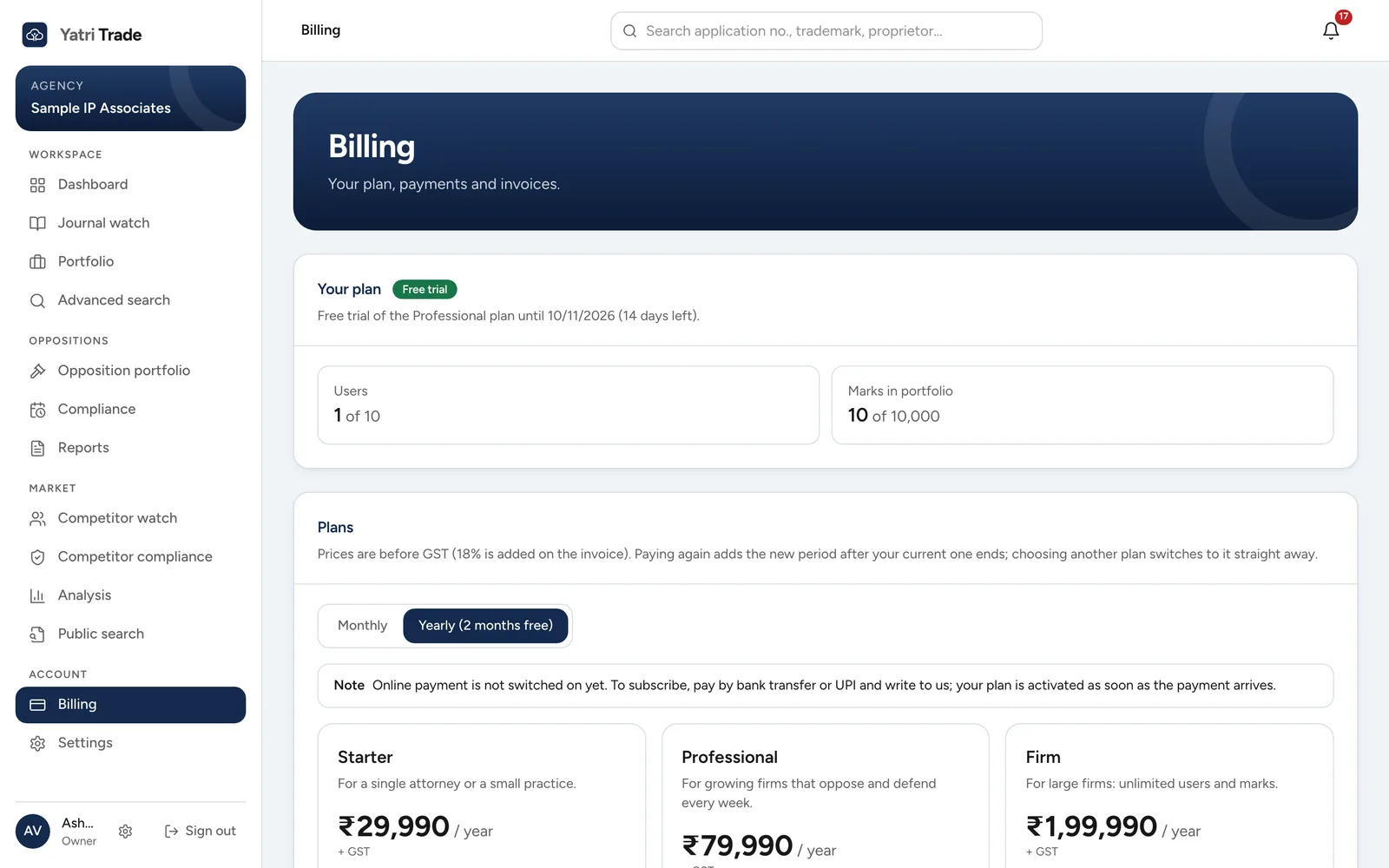
Billing shows your plan, the days left in your trial, and how many users and marks you are using. Choose a plan below, monthly or yearly. Prices are before GST, and every payment gets a GST invoice. More in Plans and billing.
Settings
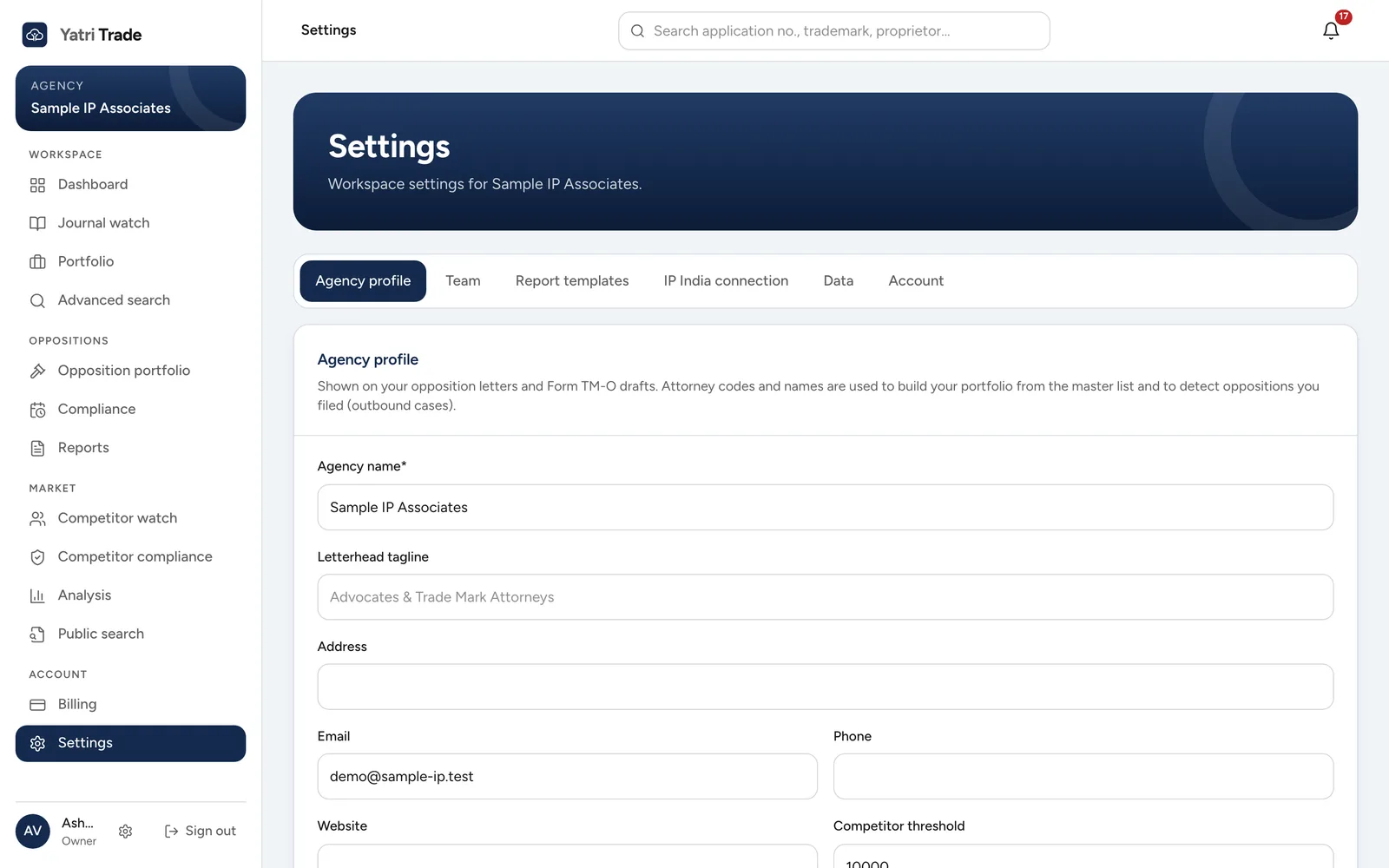
Settings opens on Agency profile, where you enter the letterhead details and agent codes used in every letter. The other tabs are Team for your colleagues, Report templates for your own Word formats, IP India connection, Data and Account. More in Settings.